Compress PDF to 300KB on Android Without Uploading It
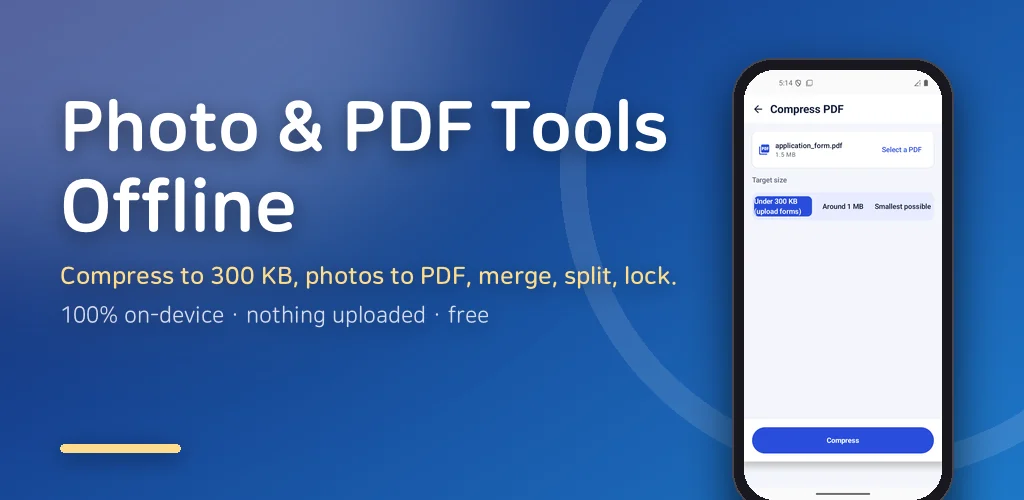
Most PDF apps I tried on Android had the same two habits. First, they quietly uploaded my file to their server to do the work — which is fine for a restaurant menu and not fine for a scan of my passport. Second, they stamped a watermark on the output and offered to remove it for a subscription. I hit both problems the day I needed to compress PDF to 300KB for an online application, and that afternoon is why this app exists.
So the design rule was blunt: nothing leaves the phone, ever. No account, no cloud, no watermark, no trial that turns into a bill. Every conversion, every merge, every compression runs on the device itself, and you can prove it by switching on airplane mode and doing the whole job anyway.
▶ Get it on Google Play (free): https://play.google.com/store/apps/details?id=com.thefacegood.photopdf
Why the file has to stay on the phone
Think about what people actually turn into PDFs on a phone: ID cards, contracts, medical forms, pay slips, a child's school paperwork. These are the last documents you want passing through an anonymous server, and yet that is the default for most free converters, because server-side processing is easier to build.
Doing it on-device is harder, especially compression, but it changes the trust model completely. There is no privacy policy to read carefully, because there is nothing to send. The app is free and supported by a banner ad plus one interstitial when you save; the ads have no access to your files, and the files still never go anywhere.
Compress PDF to 300KB: the preset I built for forms
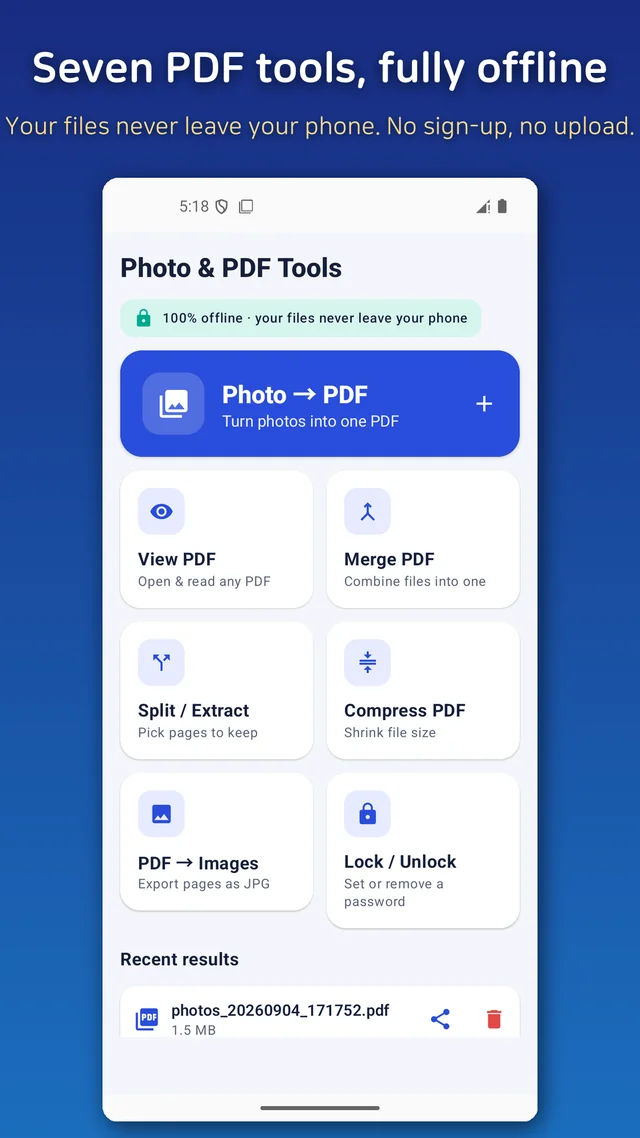
Upload forms love arbitrary size limits. 300KB is the one I kept running into, so it is a one-tap preset: pick the PDF, choose "Under 300KB (upload forms)", and the app works out how far it has to squeeze the images inside to land under the line. There are two other presets — "Around 1MB" for email, and "Smallest possible" when you just want it tiny — but the 300KB one is the reason most people open this screen.
The important detail is that the target is a size, not a quality slider. Nobody uploading a form cares whether the compression is 60% or 70%; they care whether the file gets accepted. The app aims at the number for you.
Photos to PDF, merge, split, lock: the other six tools
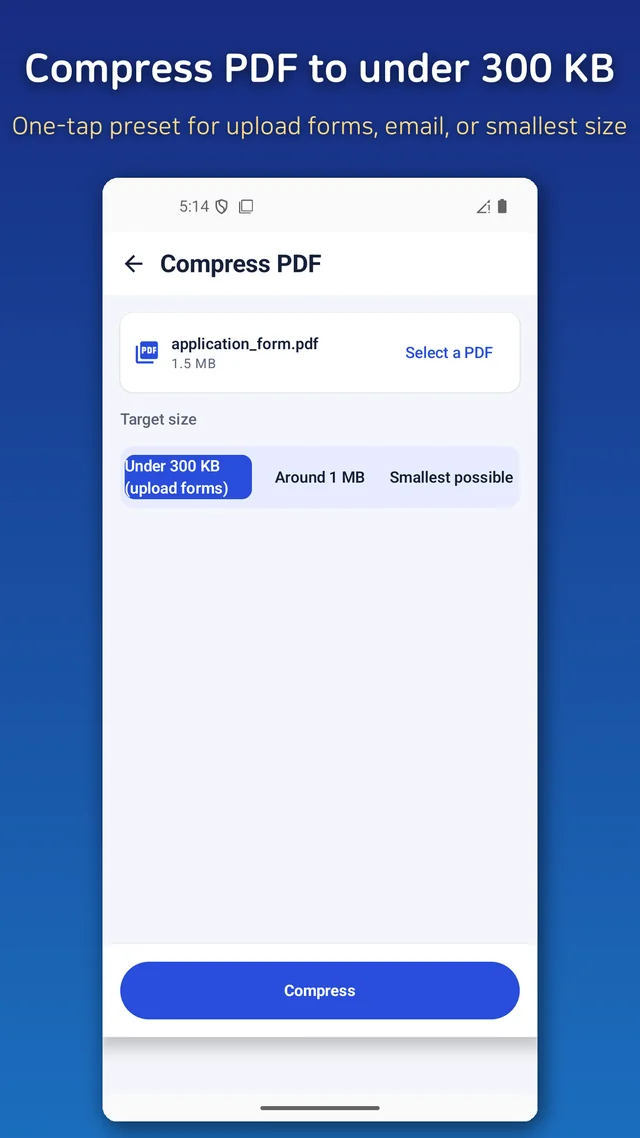
Compression was the itch, but a PDF app that only compresses is not much use, so there are seven tools on the home screen.
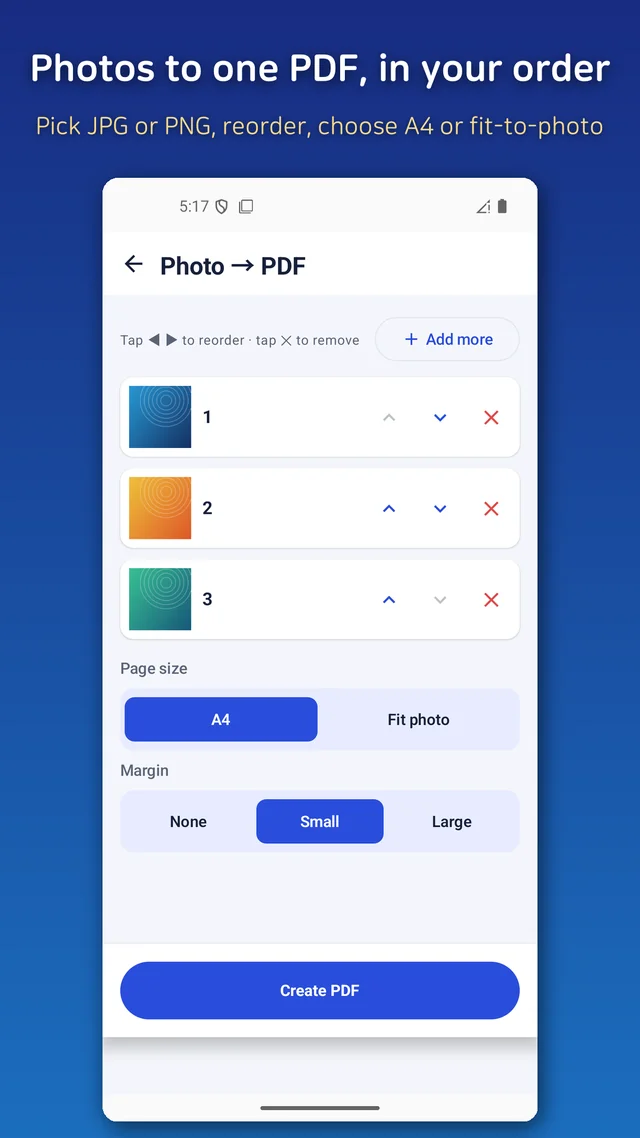
Photo to PDF takes several images at once — JPG or PNG — lets you reorder them, and combines them into a single PDF. This is the "convert jpg to pdf offline" job: receipts, handwritten notes, a signed page you photographed. Merge PDF joins several files top to bottom in the order you set. Split lets you pick just the pages you need and save them separately. PDF to Images exports pages as JPG straight into your gallery. Lock and Unlock set or remove a password, again entirely on the device. And there is a viewer that opens anything you receive by email or chat, with a night mode and a memory of the last page you were on.
None of it is revolutionary. What I care about is that all seven work without a network and without leaving a logo on your document.
The compression mistake that cost me a week
My first compressor re-encoded every image at a fixed quality and hoped for the best. It routinely missed the target — a 2MB scan would come out at 420KB, uselessly above the 300KB line — or overshot and turned text into mush. The fix was to treat it as a search: try a quality, measure the result, adjust, repeat, and stop as soon as the file is under the target. It is slower by a second or two, and it is the difference between a tool that "compresses" and a tool that gets your form accepted.
The second lesson was rotation. Photos taken in portrait carry orientation metadata that some PDF renderers ignore, so early PDFs came out sideways. The app now bakes the rotation into the page before it writes anything.
Who this is for
- Anyone who needs to submit photographed documents as a PDF and does not want them on a stranger's server
- People fighting a "file too large" error on a government, school or job application form
- Students and office workers bundling several PDFs into one attachment
- Anyone tired of watermarks and surprise subscriptions on basic PDF tools
Download (Google Play, free): https://play.google.com/store/apps/details?id=com.thefacegood.photopdf
If a form you use has a size limit I have not covered, tell me the number and I will consider adding it as a preset. The 300KB option only exists because someone needed it.


Comments
Post a Comment