Fingerprint Sensor Not Working? A Quick Way to Test It
If your fingerprint keeps failing, the quickest way to tell whether the phone’s sensor is at fault is to test it outside the app that is rejecting you, using Android’s own standard fingerprint prompt. If your finger passes there, the sensor and the registered fingerprint are working and the problem is in that one app. If it fails there too, the fix is on the phone side.
Below is how that test works, what each result means, and the usual fixes in a sensible order.
Is it the sensor or just one app?
| What you see | Most likely cause | What to do |
|---|---|---|
| Fails in your banking app, passes in a neutral test | The app: its own timeouts or retry limits | Update or reinstall the app, or contact its support |
| Fails in the app and in a neutral test | The sensor or the registered fingerprint | Clean the sensor, re-register the finger, try without the screen protector |
| The test says no sensor, unavailable, or no fingerprints enrolled | Hardware state or enrollment | See the three messages below |
What a neutral test actually does
A third-party app cannot read your fingerprint. It asks Android the same question a banking app asks, “please verify a biometric”, and Android shows its own standard prompt. The app receives only the result, succeeded or failed. Fingerprint data stays in the phone’s secure hardware. A test app also cannot clean, calibrate or repair the sensor; it only gives you a repeatable yes or no through the real system path.
On phones where face unlock is also registered as a biometric, Android may offer that in the same prompt.
The three states Android can report
- No fingerprint hardware. The phone reports no sensor at all. Either the model has none, or the sensor has failed badly enough that the system no longer registers it.
- Biometric features currently unavailable. The sensor exists but the system cannot use it right now. Restarting the phone is usually the first thing to try.
- No fingerprints enrolled. The hardware is fine, but no finger is registered. This often happens after a factory reset. Register a finger in the phone settings and test again.
Only if none of these applies does the real fingerprint prompt appear.
Fixes in order
- Wipe the sensor and your finger. Moisture, grease and dust are the most common causes.
- Restart the phone.
- Remove a thick screen protector, especially on a phone with an under-display sensor, and test again.
- Delete the registered fingerprint and add it again, ideally the same finger registered from several angles. An old enrollment can stop matching.
- If it still fails the neutral test, take the phone to a service center. A repeated failure there points to hardware, not to an app.
The five-failure lockout
Android enforces a lockout of its own: after five failed attempts in a row it refuses further tries for thirty seconds. That is a system rule, not a bug in any app. If it happens during a test, go back, wait, and try again. Hammering a banking app can add that app’s own lockout on top.
Good times to run the test
- After putting on a new screen protector.
- After a drop or a repair.
- Before buying a used phone.
- After a factory reset, to confirm the enrollment survived.
A pass means the system accepted your fingerprint at that moment. It is not a hardware certification.
A one-button test on your phone
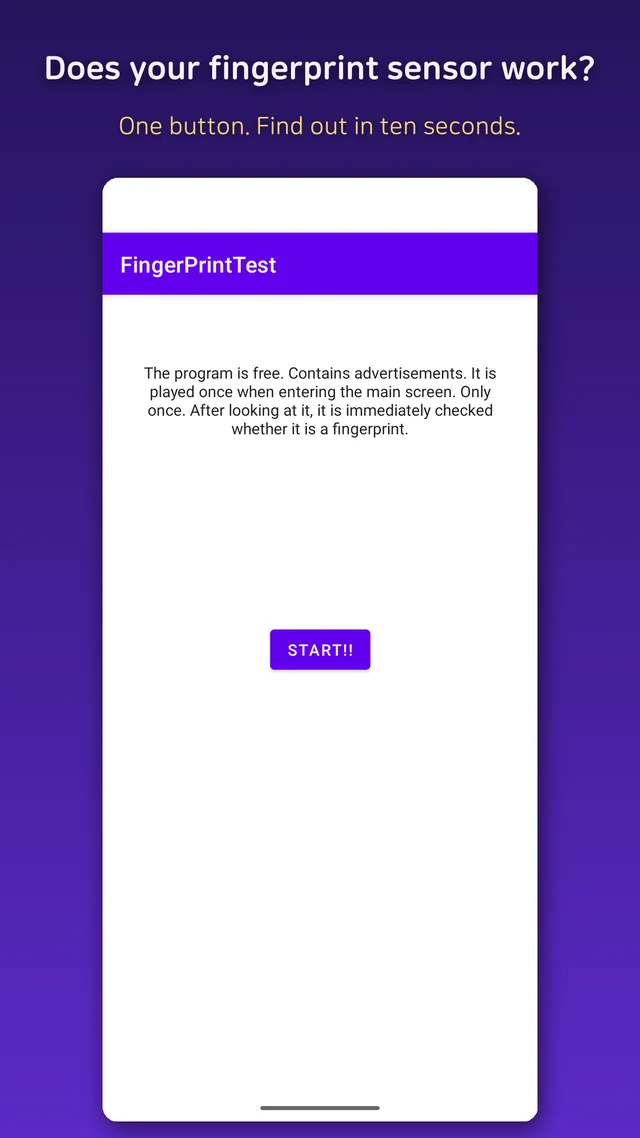
Fingerprint Test is a free Android app with exactly that: two screens, one button, and the standard Android prompt with a clear success or failure message. It collects no data, needs no account and does not need the internet for the test itself. It shows one full-screen ad when you open the test screen.


Comments
Post a Comment